
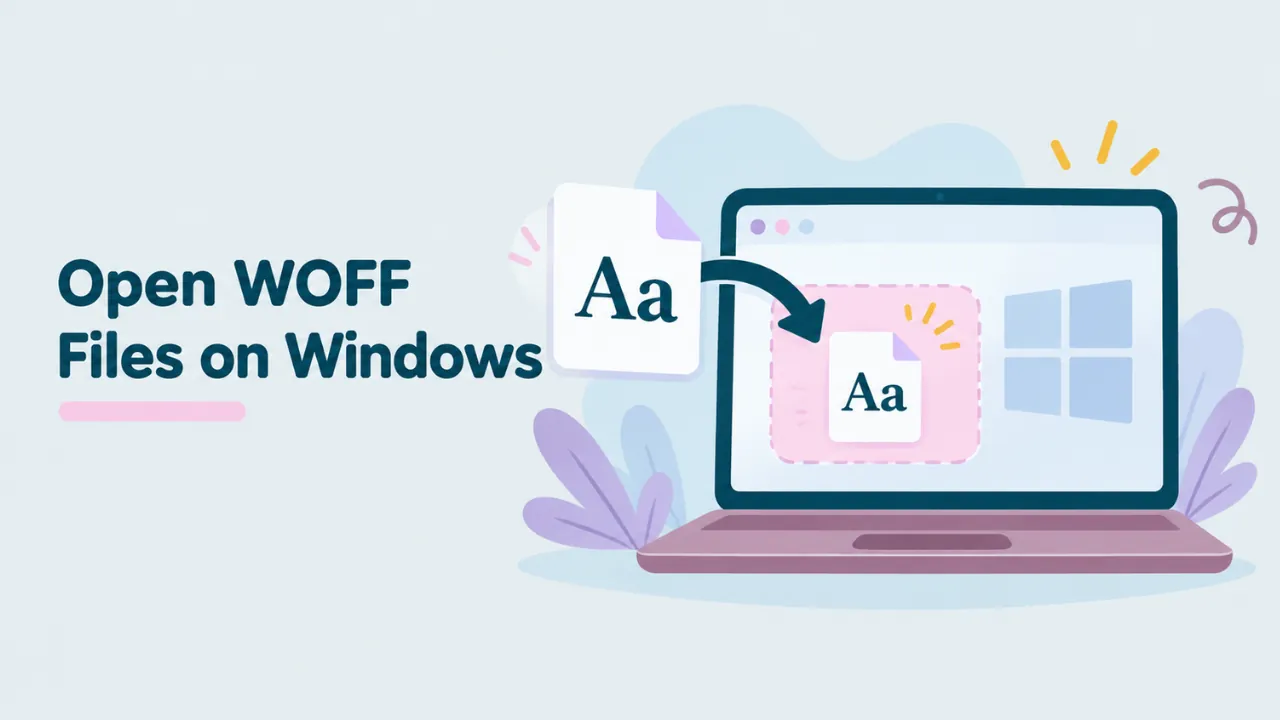
How to Open WOFF Files on Windows 10 and 11
You double-click a WOFF file on your Windows PC and get the message “How do you want to open this file?” Or the file opens in Edge and just downloads again. Windows does not know what a WOFF file is. This guide shows you how to open WOFF files on Windows 10 and 11, look inside them and install them as normal fonts.
Why Windows will not open WOFF files
Windows has a built-in app called Font Viewer. It opens fonts when you double-click them. But it only works with desktop font formats, mainly TTF and OTF, plus a few older types like FON.
WOFF is a web font format. It holds the same kind of data as a TTF or OTF file, but packed for websites. Windows Font Viewer does not unpack it. So when you double-click a WOFF file, Windows has no app to hand it to.
The file is not broken. You just need a different tool to open it. If you want the background, read what a WOFF file is.
The easiest way: open it in your browser
Every modern browser on Windows can read WOFF files. You just need a page that shows you what is inside. Our free WOFF viewer does exactly that.
- Open Edge, Chrome or Firefox.
- Go to openwofffile.com.
- Open File Explorer and find your WOFF file.
- Drag the file from File Explorer onto the pink box. Or click “Choose font file” and browse to it.
- The font opens in a second.
You will see a live preview you can type into, sample text at four sizes, the font name and style, the license, and every glyph in the file. The file stays on your PC. Nothing is uploaded.
Try it: Drag your WOFF file from File Explorer into the free viewer.
How to install a WOFF font on Windows
Viewing is great, but maybe you want to type with the font in Word, PowerPoint or Photoshop. For that, Windows needs a TTF or OTF file. You can make one in a few clicks.
- Open the WOFF file in the viewer.
- Click “Convert & download .ttf”. Some fonts become .otf instead. The tool picks the right one.
- Open your Downloads folder.
- Right-click the new file.
- Choose “Install” to install it for your account. Or choose “Install for all users” if you want everyone on the PC to have it. That option needs admin rights.
The font now appears in the font list of every app on your PC. You may need to close and reopen the app first.
For more detail, including what to do when install fails, see how to install a WOFF font on Windows.
Before you install: check the license shown in the viewer. A font you saved from a website is not always free to use.
Check the font before you install it
It is worth spending one minute in the viewer before you install anything. Installed fonts clutter your font menus, and removing them later is a chore. Here is what to check:
- Type your real text. Try the exact words you plan to use, like a name or a headline.
- Look at special characters. If you write in a language with accents, type a few, like é, ü or ñ. Missing characters show as boxes.
- Check the numbers. Type a price or a date. Some display fonts have odd-looking numbers.
- Read the glyph count. A few hundred glyphs usually means basic Latin only. Thousands means wide language support.
- Read the license. It tells you if you can use the font for work, print or logos.
If the font passes these checks, convert and install it. If not, you just saved yourself a cleanup job.
Where Windows keeps installed fonts
After you install a font, Windows stores it in one of two places:
| Install option | Folder |
|---|---|
| Install (just you) | C:\Users\YourName\AppData\Local\Microsoft\Windows\Fonts |
| Install for all users | C:\Windows\Fonts |
You can also see and remove fonts in Settings. Go to Settings, then Personalization, then Fonts. On Windows 11, you can drag TTF and OTF files onto the “Drag and drop to install” area on that page. WOFF files will not work there. Convert them first.
How to open WOFF2 files on Windows
WOFF2 is the newer version of WOFF. Windows cannot open it either. The steps are the same. Drop the WOFF2 file into the viewer, look at it, and convert it if you want to install it. We have a separate guide for opening WOFF2 files on Windows with a few extra tips.
Making WOFF files open in your browser by default
If you open WOFF files often, you can set Windows to always send them to your browser. That way a double-click opens them in Edge or Chrome.
- Right-click any WOFF file.
- Choose “Open with”, then “Choose another app”.
- Pick Edge or Chrome.
- Tick “Always use this app to open .woff files”.
- Click OK.
Be aware that a browser opening a WOFF file directly does not show you much. It may display nothing or just download it again. Browsers use fonts inside pages, but they do not have a font preview screen. So this trick is less useful than it sounds. Most people are better off bookmarking the viewer page.
Other Windows apps that can open WOFF files
If you need more than a quick look, a few desktop apps can handle WOFF files on Windows.
FontForge
FontForge is a free, open source font editor. It can open WOFF files, show every glyph, and save the font as TTF or OTF. It is great if you want to change the font. It is slow to learn, though. See how to edit a WOFF file for a quick start.
Python and fontTools
If you have Python installed, the fontTools library can read and convert WOFF files from the command line. It is handy for converting many files at once.
Visual Studio Code
VS Code opens WOFF files, but only as raw data. It does not show the font. Some extensions add a preview. For most people, a browser viewer is faster.
For a longer list, read what app opens WOFF files.
Common problems on Windows
“This file is not a valid font file”
You tried to install a WOFF file directly, or a TTF that was not converted properly. Convert the WOFF file first. If the converted file still fails, the font may be cut down or damaged. See can’t open a WOFF font.
The font installs but looks wrong in Word
Some web fonts only include the letters one website needed. Missing letters show as boxes or switch to another font. Our guide on why WOFF fonts show boxes explains why and what to do.
The font does not show in the app
Close the app and open it again. Many apps only read the font list when they start. If it still does not appear, check that you installed the converted TTF or OTF, not the WOFF.
The viewer does not open the file
Make sure your browser is up to date. Then check that the file is a real font. Right-click it, choose Open with, and pick Notepad. If you see HTML code, it is a web page that was saved with a font name. A real WOFF file starts with the letters wOFF.
Windows 10 vs Windows 11
The steps are nearly the same on both. The main differences:
- Windows 11 has a cleaner Fonts page in Settings with a drag and drop area.
- The right-click menu on Windows 11 is shorter. If you do not see “Install”, click “Show more options” first.
- Both versions need TTF or OTF to install. Neither opens WOFF on its own.
Is it safe to open WOFF files on Windows?
Opening a WOFF file in a browser tool is safe. Browsers check web fonts before they use them, because websites send fonts to millions of people every day. Our viewer also runs entirely in your browser, so the file never leaves your PC.
Installing fonts is a bit different. Only install fonts from sources you trust. Fonts are small programs, and very old versions of Windows had bugs in how they read fonts. Keep Windows updated and you will be fine.
Common questions
Can Windows Font Viewer open WOFF?
No. It only opens desktop formats like TTF and OTF. Use a browser-based viewer instead.
Do I need to buy software to open WOFF files?
No. A free browser tool like openwofffile.com shows the font, its details and its glyphs. FontForge is free too.
Will converting to TTF lower the quality?
No. The conversion unpacks the same font data. Nothing is redrawn or lost. See how to convert WOFF to TTF for how it works.
Summary
Windows cannot open WOFF files by itself, because Font Viewer only reads TTF and OTF. Open the file in a browser-based WOFF viewer to see it. If you want to use the font in your apps, convert it to TTF, then right-click and choose Install.




One Comment